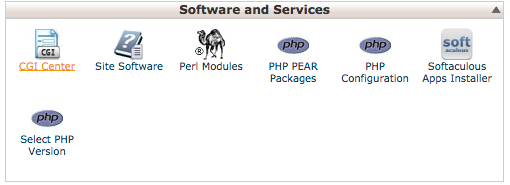
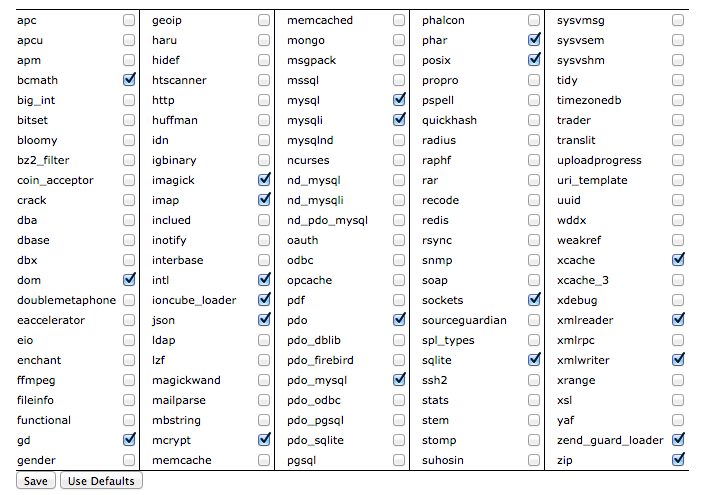
WP Domain Checker WordPress Plugin have feature allow you to check Internationalized Domain Name (IDN), to make this plugin able check IDN domain, you need enable/install Intl php extension. There are several method to install/enable this extension:
Installing on Linux (Ubuntu)
run the following commands:
sudo apt-get install php5-intl
You then need to restart Apache
sudo service apache2 restart
You can also check what extensions are compiled in by running:
php -m
Installing on Linux (Centos)
run the following commands:
sudo yum install libicu
sudo yum install libicu-devel.x86_64
sudo /usr/bin/pecl install intl
add “extension=intl.so” in your php.ini file.
You can also check what extensions are compiled in by running:
php -m
Installing on OSX
1. Install ICU Libraries with Homebrew
The ICU Libraries is our only dependency. If you have Homebrew installed you can use that; alternatively, you can download and compile from source.
Using homebrew:
brew update
brew install icu4c
2. Install Intl with PECL
sudo pecl update-channels
sudo pecl install intl
and add “extension=intl.so” in your php.ini file.
restart the apache.
if you found this error:
Cannot find autoconf. Please check your autoconf installation and the
$PHP_AUTOCONF environment variable. Then, rerun this script.
The solution I came up with was to compile autoconf from source and set the environment variable which points to autoconf required by phpize.
Download autoconf
curl http://ftp.gnu.org/gnu/autoconf/autoconf-latest.tar.gz > autoconf.tar.gz
Untar the autoconf archive
tar -xvzf autoconf.tar.gz
Configure and make – note the folder un-archived may have a different name.
cd autoconf-2.69
./configure
sudo make && sudo make install
This installs autoconf to ‘/usr/local/bin/autoconf’. In order to get phpize to work set the PHP_AUTOCONF environment variable to point to the newly installed autoconf.
export PHP_AUTOCONF=/usr/local/bin/autoconf
Running phpize when attempting to compile a php extension should now work.